
Smarter AI CoA Generator
Smarter AI CoA Generator builds a complete chart of accounts for a Business Central company from two inputs: the country whose accounting conventions should apply and the industry the business operates in. It presents the result as a reviewable proposal and creates the G/L accounts only after you accept it.
The app is aimed at implementation consultants and finance teams setting up a new company and at anyone restructuring an existing chart of accounts.
Important: this app uses a third-party AI service
Smarter AI CoA Generator sends the information you enter to an external AI API. Read and understand the terms and conditions of that service before proceeding.
What the app sends outside Business Central
Each time you click Generate or Regenerate, the app transmits the following:
- The Country you selected.
- The Industry you typed.
- Any text you entered in Refinement (optional).
- The descriptions of the G/L Account Category records that already exist in the company, which allow the model to tag proposed accounts against categories you already use.
What the app does not transmit
- Existing G/L account numbers, names or balances.
- Posted transactions or ledger entries of any kind.
- Customer, vendor, employee or contact records.
- Any other company or personal data held in Business Central.
Your API key is stored encrypted in Business Central Isolated Storage, scoped to the individual company. It is never displayed on screen after entry and it is sent only to the endpoint configured on the setup page. Handling of the data described above by the selected AI service is governed by the agreement between you and that provider, not by Smarter Apps Ltd.
Before you start
- A Microsoft Dynamics 365 Business Central environment on a supported version.
- An AI account with an active API key and available credit.
- Permission to install extensions and permission to activate an AI capability at tenant level.
- The app permission set assigned to the users who will run the generator.
Installing the app
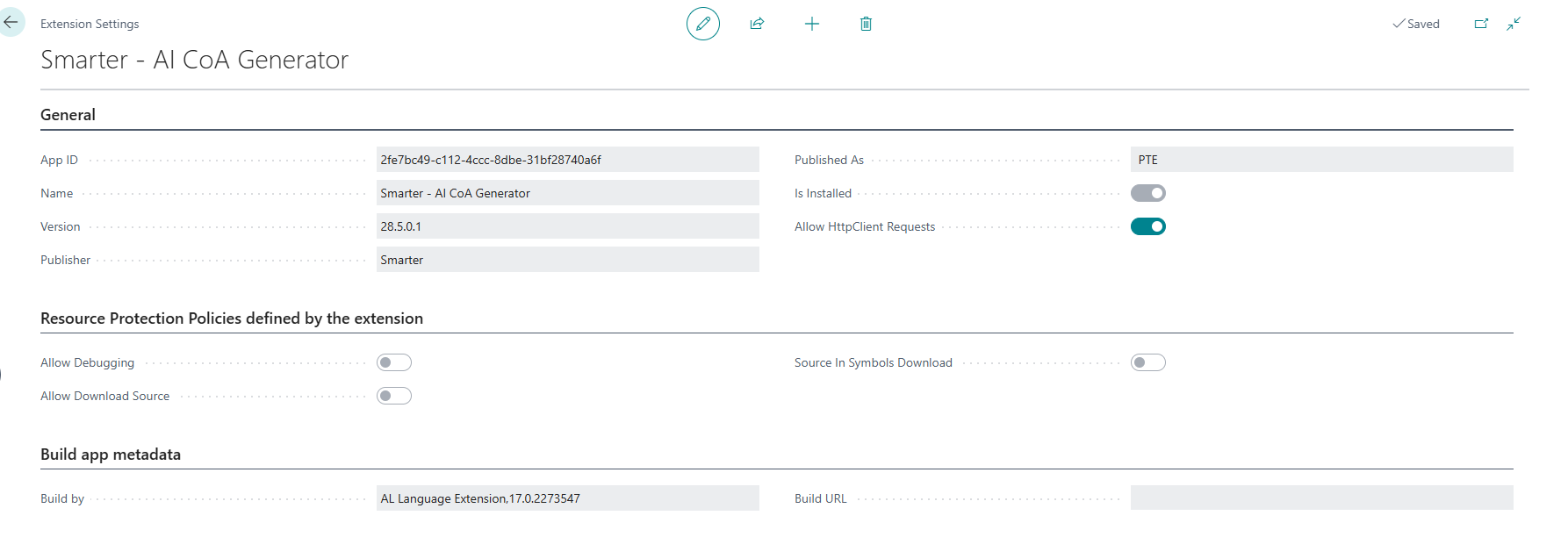
- Install Smarter AI CoA Generator from Microsoft AppSource, or from the Extension Marketplace inside Business Central.
- Wait for the installation to complete. The app registers its AI capability during installation.
- Assign the app permission set to the users who will generate a chart of accounts.
Setting up the app
Setup has two parts. Both are required before the generator will run.
Step 1: Store your AI API key
- Choose the search icon, enter Smarter-AI Chart of Accounts Setup and open the page.
- Choose the Set API Key action.
- In the Smarter-Enter AI API Key dialog, paste your key into the API Key field. The value is masked as you type.
- Choose OK. The API Key Is Stored field on the setup page changes to show that a key is now held.
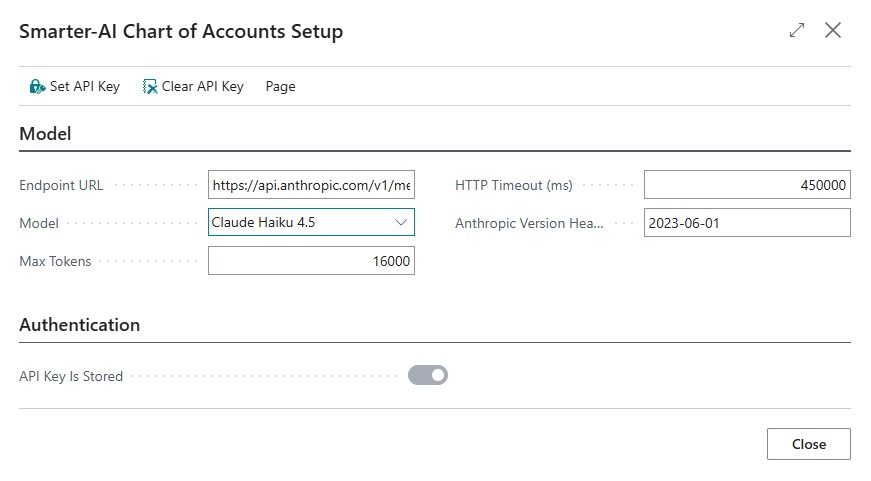
The key is stored per company. If you use the app in more than one company in the same environment, repeat these steps in each one.
Step 2: Activate the AI capability
- Choose the search icon, enter Copilot & AI Capabilities and open the page.
- Locate the AI Chart of Accounts capability.
- Set its status to Active.
This step is performed by an administrator and applies to the whole environment. If the capability is left inactive, the generator reports that the capability is not active and stops.
Configuration reference
The following fields are available on the Smarter-AI Chart of Accounts Setup page. The defaults are suitable for most installations.
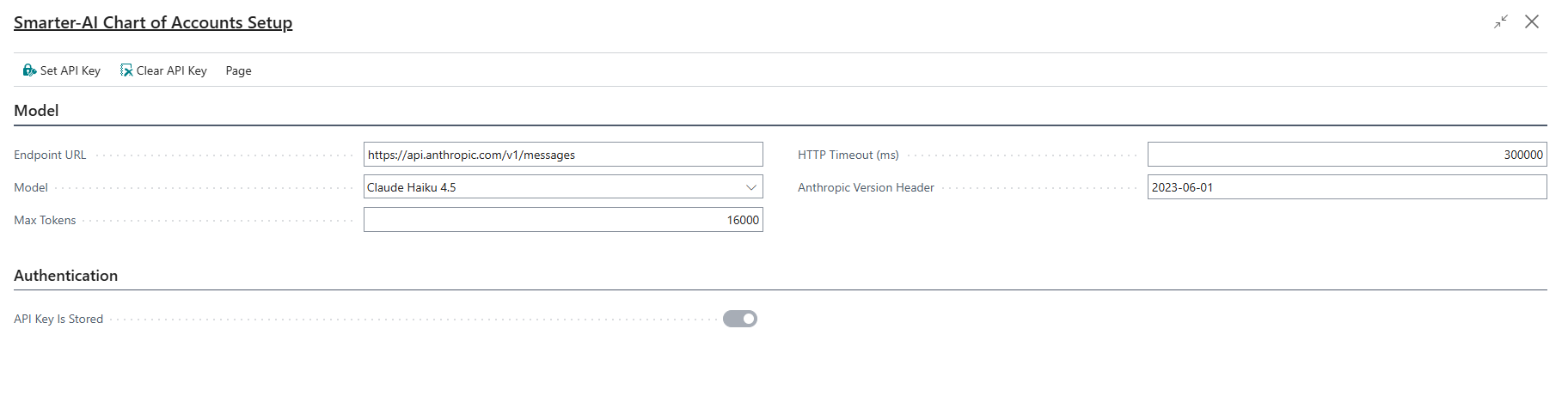
| Field | Purpose | Default |
|---|---|---|
| Endpoint URL | The Messages API endpoint the app calls, Anthropic for example. | https://api.anthropic.com/v1/messages |
| Model | The AI model identifier used for generation. A smaller model reduces cost and increases speed, at some cost to the quality of the proposal. | Set by the app on installation |
| Max Tokens | The maximum length of the response the model may return. Raise this if generation fails because the response was cut short. Lower it to cap cost per call. | Set by the app on installation |
| Anthropic Version | The API version header sent with each request. Change this only if your provider instructs you to. | Set by the app on installation |
| HTTP Timeout (ms) | How long the app waits for a response before giving up. Raise it if large charts time out. | Set by the app on installation |
| API Key Is Stored | Read only. Indicates whether a key is currently held for this company. | Empty until a key is set |
Generating a chart of accounts
- Open the company you want to work in.
- Choose the search icon, enter Chart of Accounts and open the page.
- Choose the Generate with AI action.
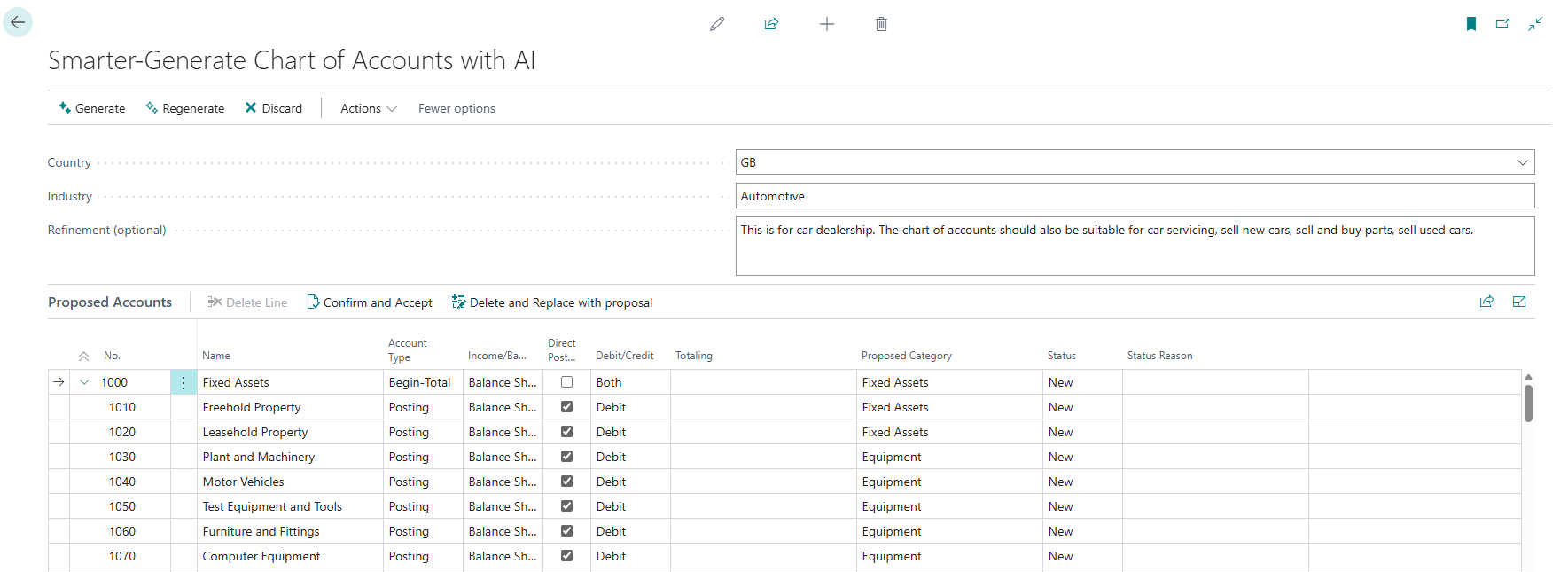
- In the Smarter-Generate Chart of Accounts with AI dialog, select a Country. The country determines the numbering convention and structure used.
- Enter an Industry. Plain descriptions work best, for example retail, professional services, construction or manufacturing.
- Choose Generate.
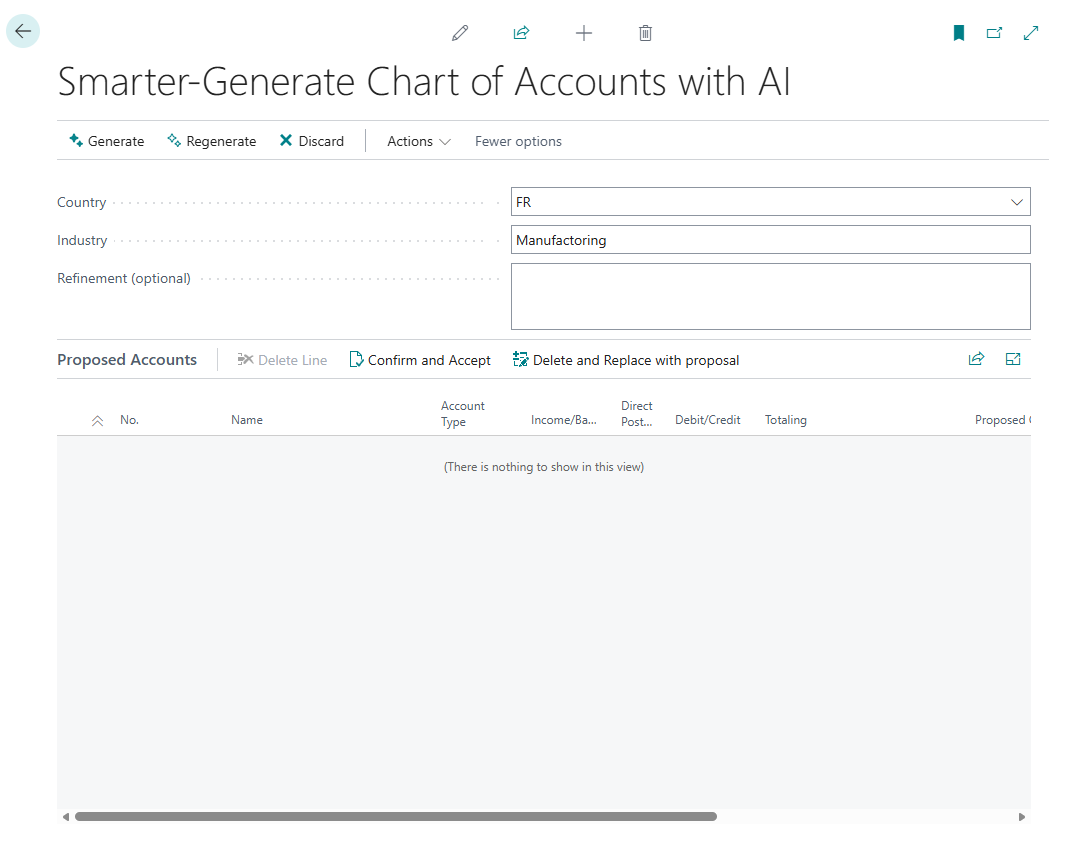
The proposal appears in the Proposed Accounts area, indented to show the hierarchy. Nothing has been written to your company at this point.
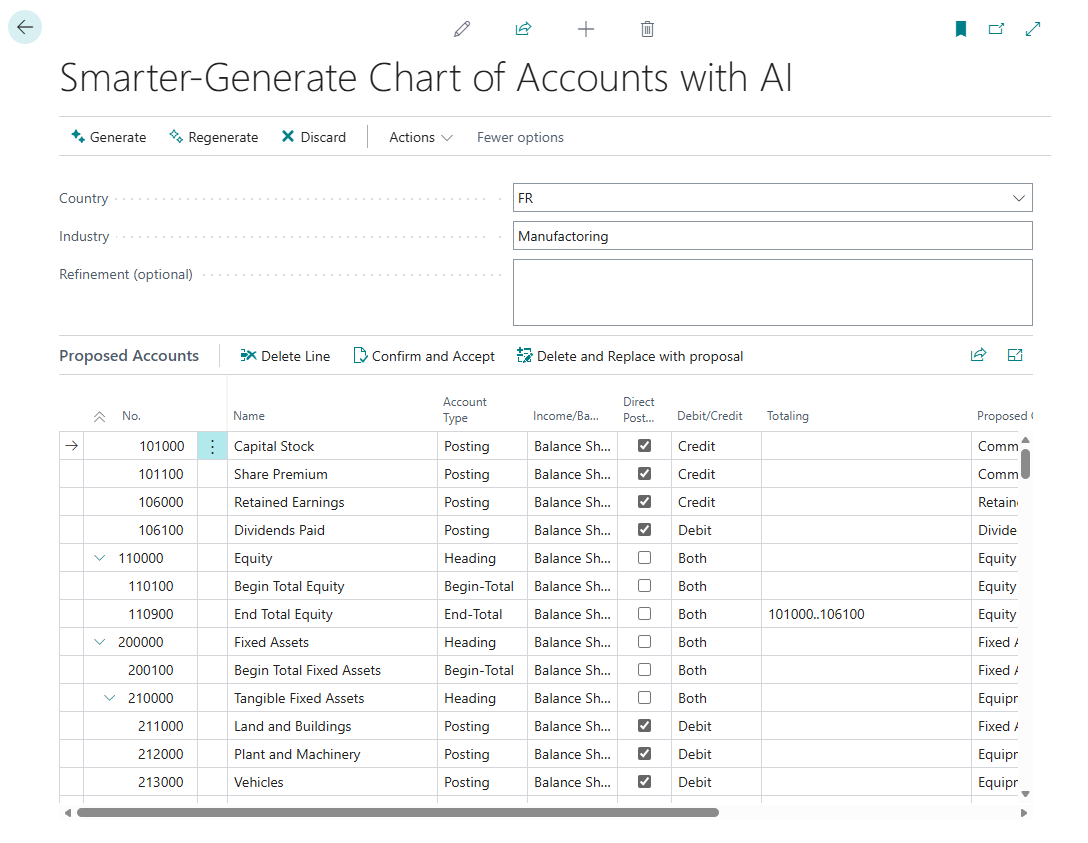
Reviewing the proposal
Every proposed row carries a Status that determines what happens to it when you accept the proposal.
| Status | What happens on acceptance |
|---|---|
| New | The account does not exist in the company and will be created. |
| Conflict - Skip | An account with this number already exists. The row will be ignored and the existing account left untouched. This is the default treatment of a conflict. |
| Conflict - Overwrite | An account with this number already exists and will be updated with the proposed values. Set this on a row yourself when you want the existing account replaced. |
| Invalid | The row failed validation and will be skipped. Common causes are a missing account number, a malformed End-Total range, or a Begin-Total without a matching End-Total. |
Where a row is in conflict or invalid, the reason is shown alongside it. Change a row from Conflict - Skip to Conflict - Overwrite to have the existing account replaced instead of preserved.
The output is generated by an AI model and is a starting point rather than a finished chart of accounts. Check the numbering, the account categories, and the Begin-Total and End-Total ranges against your own reporting requirements. The app validates that total ranges are well formed. It does not verify that they cover the correct accounts.
Refining the result
If the proposal is close but not right, you do not have to start again.
- Enter guidance in the Refinement (optional) field, for example fewer expense accounts, or include detailed inventory accounts.
- Choose Regenerate.
Each regeneration is a fresh request. Previous proposals are not carried forward as context and the refinement text is applied to a new generation rather than as an edit to the existing list.
Applying the proposal
Three actions are available once you are satisfied with the proposal.
| Action | Effect |
|---|---|
| Confirm and Accept | Creates the rows marked New and updates the rows marked Conflict - Overwrite. A confirmation dialog shows the counts before anything is written. Existing accounts not named in the proposal are left in place. |
| Delete and Replace with proposal | Removes the existing chart of accounts and replaces it with the proposal. Use this only on a new company or where you are certain the existing accounts are not required. |
| Discard | Closes the dialog and makes no changes. |
Delete and Replace with proposal cannot be undone from within the app. Before using it, confirm that no posting has taken place against the existing accounts and take a copy of the environment or export the existing chart of accounts. Business Central prevents deletion of accounts that carry entries, which means a partial replacement is a possible outcome on a company that has been posted to.
When the run completes, a message reports how many accounts were created and how many were updated. Open the Chart of Accounts page to see the result.
Troubleshooting
| What you see | Cause and resolution |
|---|---|
| A message that the AI API key has not been configured. | No key is stored for the current company. Open Smarter-AI Chart of Accounts Setup and choose Set API Key. Remember that keys are held per company. |
| A message that the AI Chart of Accounts capability is not active. | An administrator has not activated the capability. Open Copilot & AI Capabilities and set AI Chart of Accounts to Active. |
| An error naming an HTTP status returned by the API. | The service rejected the request. A 401 indicates an invalid or revoked key. A 429 indicates a rate or spending limit. A 400 usually indicates a configuration value on the setup page. Check your provider console first, then contact us if the cause is not clear. |
| A message that the app could not connect to the API. | The request did not reach the service. Confirm that outbound HTTP requests are allowed for the app on the Extension Management page and that no network restriction is blocking the endpoint. |
| A message that the response was truncated because it reached the Max Tokens limit. | The proposal was longer than the configured limit allowed. Raise Max Tokens on the setup page and generate again. A narrower industry description also produces a shorter result. |
| A message that the response could not be parsed. | The service returned something the app could not read as a chart of accounts. Try again. If it recurs, send us the full error text using Copy Details. |
| Rows appear with the status Invalid. | Those rows failed validation and will be skipped. Read the reason shown against the row. Regenerating with refinement guidance usually clears the problem. |
| Nothing is created when the proposal is accepted. | No rows were marked New or Conflict - Overwrite. Every proposed account already exists and is set to be skipped. Change the rows you want applied to Conflict - Overwrite. |
Limitations
- The proposal is generated by an AI model and requires review by a qualified person before it is accepted. It is not accounting advice and it is not a statement that the result complies with any particular reporting framework.
- Each generation is independent. Refinement guidance produces a new proposal rather than an edit to the previous one.
- Validation covers missing account numbers, conflicts with existing accounts, Begin-Total and End-Total pairing, and the syntax of total ranges. It does not confirm that a total range covers the accounts you intend.
- Account names are produced in English.
- Proposed account categories are matched against the G/L Account Category records that already exist in the company. A category that has no match is left unset.
- The app depends on the availability of the AI API. If that service is unavailable, generation cannot run.
Getting help
Email Support@SmarterApps.co.uk, or telephone +44 203 411 1064. Support hours are 09:00 to 17:00, Monday to Friday, UK time, with a target first response within 3 hours during those hours.
Full support detail, including what to send with a request, is on our support page.